
Hướng dẫn··6 phút đọc·NenMua Editor
Hướng dẫn migrate từ Windows sang Mac 2026 — chuyển đổi mượt mà
Hướng dẫn migrate từ Windows sang Mac 2026 — chuyển file, apps, shortcuts. Adapt workflow + tips cho new MacBook user.
Mục lục (37 mục)
Tóm tắt nhanh
Migration plan 4 bước:
- Backup Windows data (Time Machine alternative)
- Setup Mac (initial config + iCloud)
- Transfer files (manual / cloud / Migration Assistant)
- Install apps + adapt workflow
Total time: 4-8 giờ tùy data size + apps.
Bước 1: Backup Windows Data
What to Backup
Documents:
- Microsoft Office files
- PDFs
- Notes (OneNote, Evernote)
Media:
- Photos
- Videos
- Music (Spotify export playlists)
Settings + Bookmarks:
- Chrome / Edge bookmarks (export HTML)
- Saved passwords (1Password / Chrome export)
Project Files:
- Code repos (push to GitHub / GitLab)
- Design files (Figma cloud / Adobe Cloud)
- Email (export PST if Outlook offline)
Backup Method
External SSD (Samsung T7 1TB - 4tr):
- Connect to Windows
- Copy folders manually
- Then connect to Mac for transfer
Cloud (iCloud / Google Drive / OneDrive):
- Upload to cloud
- Download on Mac
- Works seamlessly cross-platform
NAS (Synology DS220+ - 8-12tr):
- Network storage
- Both Windows + Mac access
- Pro setup
Bước 2: Setup MacBook
Initial Configuration
- Apple ID: Sign in (create if needed)
- iCloud: Enable Drive, Photos, Mail, Contacts, Calendar
- Time Zone: Vietnam (UTC+7)
- Language: English / Vietnamese (System)
- Bàn phím: US (standard) or VN-Tieng Viet
- Trackpad: Configure gestures
- Touch ID: Setup fingerprint
Essential Settings to Change
System Settings:
- General → AppleCare: Register warranty
- General → Software Update: Auto-update
- Privacy & Security: Location services, Analytics opt-out
Trackpad:
- Tracking Speed: Higher (4-5 of 10)
- Tap to click: Enable
- Three-finger drag: Enable (Accessibility)
Bàn phím:
- Key Repeat: Fast
- Delay Until Repeat: Short
- Modifier Keys: Caps Lock → Control (if you remap)
Dock:
- Magnification: Off
- Auto-hide: Enable (more screen space)
- Position: Bottom or Left
Mission Control:
- Hot Corners: Top-right = Notification Center
Bước 3: Transfer Files
Method 1: Migration Assistant (Easiest)
- Windows: Install "Windows Migration Assistant" (Apple)
- Mac: Open Migration Assistant
- Choose "From a Windows PC"
- Both Windows + Mac same Wi-Fi
- Transfer documents, photos, calendar, contacts
Thời gian: 2-4 giờ for 100GB.
Method 2: External Drive Manual
- Copy Windows data to external SSD
- Plug SSD into Mac
- Drag folders to Mac Home folder (Documents, Pictures, Downloads, etc.)
Thời gian: Depends on SSD speed.
Method 3: Cloud Sync
- Upload Windows folders to OneDrive / Google Drive / iCloud
- Sign in same account on Mac
- Sync down
Thời gian: Internet-bound (slow for VN ADSL).
Bước 4: Install Apps
Core Apps Equivalents
| Windows | Mac Equivalent |
|---|---|
| Microsoft Office | Microsoft Office for Mac (or Apple Pages, Numbers, Keynote) |
| File Explorer | Finder |
| Notepad | TextEdit / Code Editor |
| Task Manager | Activity Monitor |
| Control Panel | System Settings |
| Settings | System Settings |
| Edge / Chrome | Chrome / Safari / Brave |
| Windows Defender | macOS built-in security + Malwarebytes |
| 7-Zip | The Unarchiver (free) |
| VLC | VLC for Mac (cross-platform) |
| Adobe Creative Suite | Same on Mac (Photoshop, Premiere, etc.) |
| Visual Studio Code | VS Code (cross-platform) |
| IntelliJ / PyCharm | Same on Mac |
Mac-Exclusive Apps Worth Installing
- Final Cut Pro (video editing)
- Logic Pro (music production)
- Sketch (UI design)
- Things 3 (task management)
- Bear (note-taking)
- Alfred (Spotlight upgrade)
- iStat Menus (system monitoring)
- CleanMyMac X (maintenance)
- Magnet / Rectangle (window snapping like Windows)
Cross-Platform Apps (Same as Windows)
- Slack, Discord, Microsoft Teams
- Spotify, Apple Music, YouTube Music
- Notion, Obsidian, Roam Research
- Figma, Adobe Creative Cloud
- 1Password, LastPass, Bitwarden
- Zoom, Google Meet, Webex
Adapting Workflow
Keyboard Shortcuts
Windows → Mac equivalents:
| Windows | Mac |
|---|---|
| Ctrl+C / V | Cmd+C / V |
| Ctrl+Z | Cmd+Z |
| Alt+Tab | Cmd+Tab |
| Win+L (lock) | Cmd+Ctrl+Q |
| Win+E (Explorer) | Cmd+Space → Finder |
| Win+D (show desktop) | F11 (depending key) |
| Ctrl+Shift+Esc (Task Mgr) | Cmd+Option+Esc (Force Quit) |
| Print Screen | Cmd+Shift+3 (full), Cmd+Shift+4 (region) |
| F2 (rename) | Return / Enter (rename) |
| Delete | Cmd+Delete (in Finder) |
Trackpad Gestures
- Two-finger scroll: Up / Down (natural direction can flip)
- Pinch: Zoom in / out
- Three-finger swipe up: Mission Control
- Three-finger swipe left/right: Switch desktop
- Three-finger tap: Look up word
- Four-finger pinch: Show Launchpad
Spotlight Search (Cmd+Space)
- Like Windows Start menu search
- Search files, apps, calculations, web
- Quick launchers
- Replace many "find a file" actions
Pro Tips for Mac Newbies
1. Spotlight is Powerful
- Cmd+Space → search anything
- Math: Type "5*23 = ?"
- Currency: "100 USD to VND"
- Quick app launch
2. Mission Control + Spaces
- F3 or three-finger swipe up
- Multiple desktops
- App fullscreen creates new desktop
3. AirDrop
- Send file iPhone ↔ Mac instantly
- Right-click file → Share → AirDrop
- Or drag to AirDrop window
4. Continuity Features
- Universal Clipboard: Copy on iPhone, paste on Mac
- Continuity Camera: Use iPhone as webcam
- Universal Control: One mouse/keyboard controls Mac + iPad
5. Time Machine Backup
- External SSD 1TB+
- Plug in → Time Machine prompts
- Automatic backup every hour
- Restore any file from past
6. iCloud Drive
- Sync files across all Apple devices
- 50GB free, 200GB / 2TB paid
- Like Windows OneDrive
7. Finder Tips
- Cmd+Shift+G: Go to folder by path
- Cmd+Shift+H: Home folder
- Cmd+Shift+D: Desktop
- Cmd+Shift+P: Path bar toggle
8. Window Management
- Cmd+Tab: Switch apps
- Cmd+~: Switch windows within app
- Magnet / Rectangle: Snap windows like Windows 11
9. Battery Optimization
- Low Power Mode (Settings)
- Optimize Charging (Settings)
- Reduce Display Brightness
10. Force Quit
- Cmd+Option+Esc when app freezes
- Same as Windows Ctrl+Alt+Del → Task Manager
Recommended Hardware
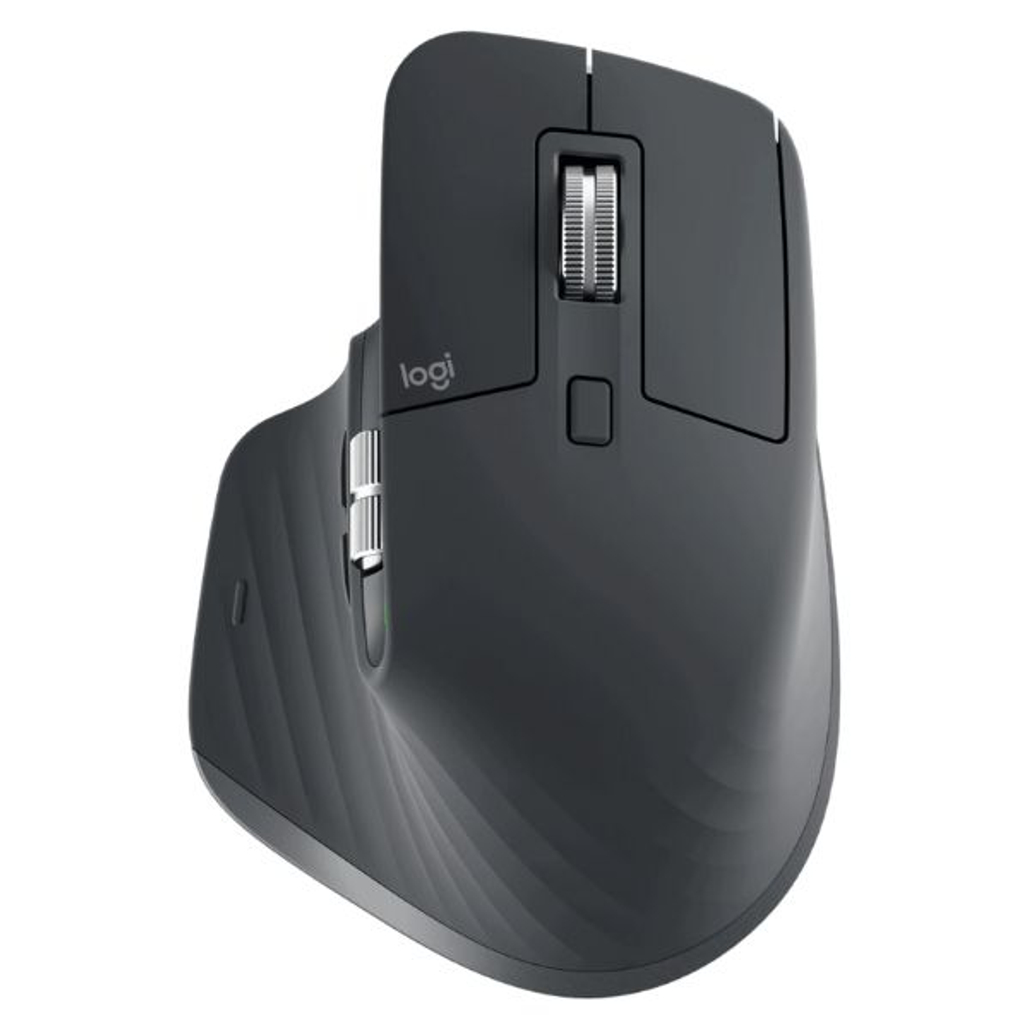
Mouse
- Logitech MX Master 3S (2.5tr): MacBook compatible, multi-device
- Apple Magic Mouse (2tr): Native macOS gestures
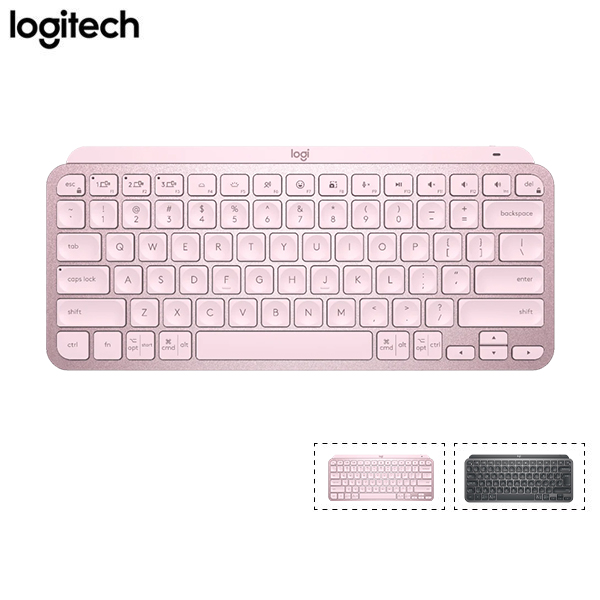
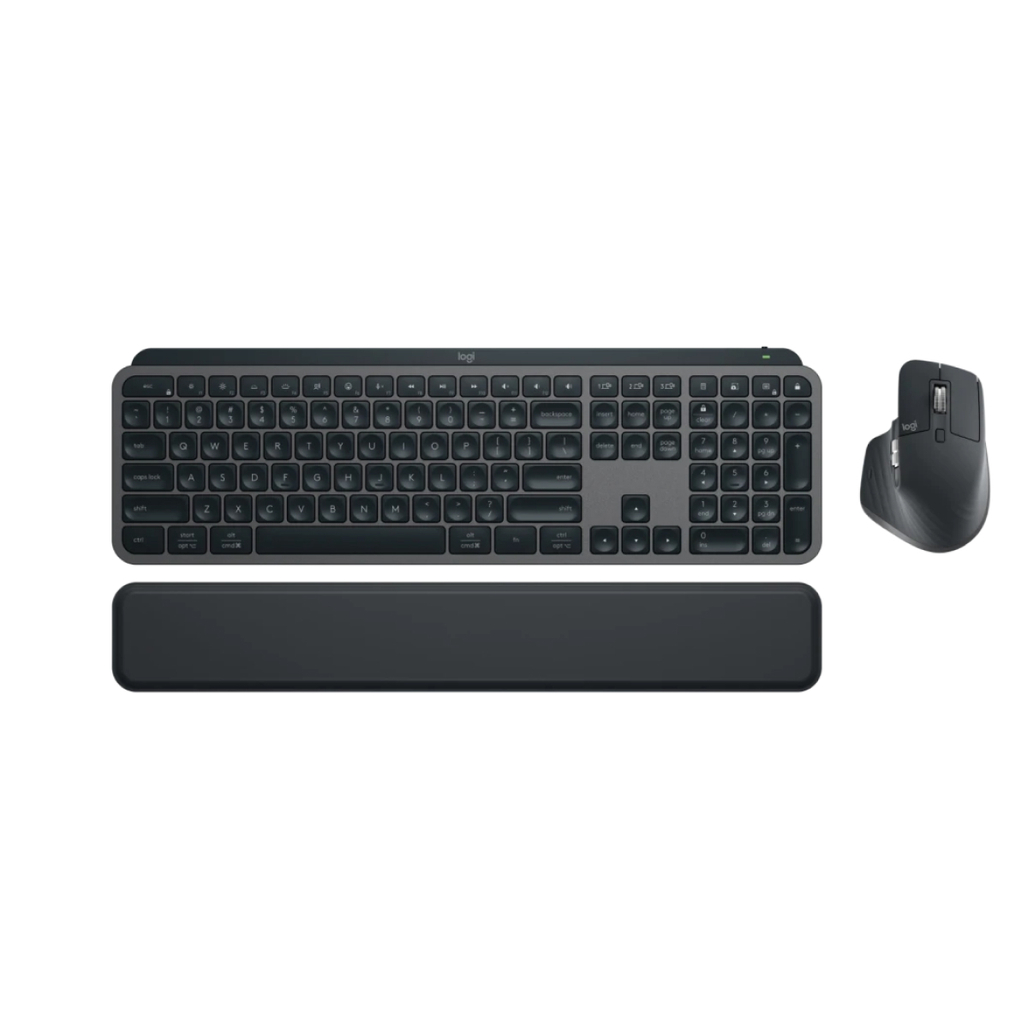
Keyboard
- Logitech MX Keys Mini (2.5tr): Mac layout, multi-device
- Apple Magic Keyboard with Touch ID (3.5tr): Native + Touch ID
- Keychron K2 Pro (3-3.5tr): Mech for typists
External Display
- Dell U2723QE (18-22tr): 4K + USB-C PD
- Apple Studio Display (30-35tr): Native macOS
Hub
- Ugreen 9-in-1 (700-950k): HDMI + USB-A + SD + Ethernet
- CalDigit TS4 Thunderbolt (12-14tr): Pro multi-monitor
Bảo quản
- Samsung T7 Shield 2TB (5-6tr): External backup
Common Issues for Windows Migrants
1. Right-Click:
- Mac trackpad: Two-finger tap
- Or: Settings → Trackpad → Secondary click
2. File Permissions:
- Mac requires permission for new apps (Security & Privacy)
- Allow apps from "Identified developers" minimum
3. Microsoft Office:
- Install Office for Mac (subscription)
- Or use Apple iWork (free)
4. Bootcamp / Parallels (Run Windows on Mac):
- Mac M-series: No Bootcamp
- Use Parallels Desktop (subscription) for Windows VM
5. Gaming:
- Mac M-series: Mac native gaming improving but limited
- Steam compatibility expanding
- Consider keeping Windows PC for gaming
Mua Chính Hãng
- MacBook: Apple Store online, TopZone (FPT), ShopDunk
- AppleCare+: Recommend extending warranty (~5-10% device cost)
- Accessories: Logitech Mall Lazada, GearVN
- Tránh: Xách tay MacBook không bảo hành VN