
Cách tối ưu Windows 11 cho máy cũ Gen Z VN 2026 — tăng tốc 30-50% không cần upgrade
Cách tối ưu Windows 11 cho máy cũ Gen Z VN 2026 — disable bloatware, debloat, settings, registry tweak. Boost FPS + responsiveness.
Mục lục (34 mục)
Tóm tắt nhanh — 12 tối ưu Windows 11
| # | Tối ưu | Cải thiện |
|---|---|---|
| 1 | Disable startup apps | Boot 30-50% faster |
| 2 | Visual effects off | UI 20% smoother |
| 3 | Disable bloatware | RAM -2-3GB |
| 4 | Storage Sense + cleanup | Disk -10-20GB |
| 5 | Power plan High Performance | Game FPS +5-15% |
| 6 | Disable indexing | I/O wait giảm |
| 7 | Game Mode on | Game FPS +5-10% |
| 8 | Disable transparency | UI smoother |
| 9 | Update driver GPU | Performance +10-20% |
| 10 | Defrag (HDD only) | HDD speed +20% |
| 11 | TRIM (SSD) | SSD lifespan + speed |
| 12 | Pagefile size optimize | Less crashing low RAM |
Khi nào cần tối ưu
Sign Windows chậm:
- Boot > 30 giây
- App open > 5 giây
- Browser lag 10+ tab
- Game FPS thấp hơn spec
- Random freeze 1-2 giây
Hardware spec gợi ý:
- RAM 8GB minimum cho Win 11
- SSD bắt buộc (HDD: nâng cấp ASAP)
- CPU 8th gen Intel / Ryzen 3000+ ideal
- Free disk 20%+ C: drive
12 tối ưu chi tiết
1. Disable startup apps
Lộ trình:
- Task Manager (Ctrl+Shift+Esc) → Startup tab
- Status column: Enabled / Disabled
Disable safely:
- Spotify
- Discord
- Steam
- OneDrive (nếu không dùng heavily)
- Adobe Updater
- Razer Synapse
- Skype
Keep enabled:
- Antivirus (Windows Defender / 3rd party)
- Audio drivers (Realtek, Nahimic)
- Touchpad driver (Synaptics)
- Display driver (NVIDIA / AMD)
Impact: Boot time giảm 30-50%, RAM idle giảm 1-2GB.
2. Visual effects off
Lộ trình:
- Settings → Accessibility → Visual Effects
- Animation effects: OFF
- Transparency effects: OFF
Or:
- Run "sysdm.cpl" → Advanced → Performance Settings
- "Adjust for best performance"
Impact: UI responsiveness +20%, GPU usage idle giảm.
3. Debloat / Remove bloatware
Tool recommend:
- Windows10Debloater (PowerShell script)
- O&O ShutUp10++ (privacy + bloat)
- Manual via Settings → Apps
Remove safely:
- Xbox Game Bar (nếu không game)
- Cortana
- Microsoft Teams (consumer version)
- Mixed Reality Portal
- 3D Viewer / Paint 3D
Keep:
- Microsoft Store (cần cho update)
- Photos
- Calculator
4. Storage Sense + Cleanup
Lộ trình:
- Settings → System → Storage
- Storage Sense: ON
- Configure: clean temp files weekly
Manual cleanup:
- Run "cleanmgr" (Disk Cleanup utility)
- Check: Windows Update files, Temp, Recycle Bin
- "Clean up system files" cho deeper clean
Tools advanced:
- BleachBit (open source)
- CCleaner (free version OK)
Impact: Free 10-20GB disk space, faster I/O.
5. Power plan optimization
Lộ trình:
- Settings → System → Power & Battery → Power Mode
- Plugged in: Best Performance
- Battery: Best Power Efficiency
Advanced:
- Run "powercfg.cpl"
- High Performance plan (hidden):
- powercfg /duplicatescheme e9a42b02-d5df-448d-aa00-03f14749eb61
Impact: Game FPS +5-15%, app responsiveness improve.
6. Disable indexing
Lộ trình:
- File Explorer → C: drive → Properties
- Uncheck "Allow files on this drive to have contents indexed..."
- Apply to all subfolders
Or:
- Services.msc → Windows Search → Manual / Disabled
Impact: Disk usage giảm, less background I/O.
Trade-off: File search slower (use Everything app instead).
7. Game Mode
Lộ trình:
- Settings → Gaming → Game Mode → ON
- Captures: disable Background recording
Game-specific:
- Settings → Display → Graphics
- Add game → Options → High performance
8. Disable Transparency
- Settings → Personalization → Colors
- Transparency effects: OFF
Impact: Less GPU compositing, especially on integrated graphics.
9. Update GPU driver
NVIDIA:
- GeForce Experience
- Or download driver only (without GeForce app)
AMD:
- AMD Adrenalin
Intel:
- Intel Driver & Support Assistant
Mẹo: Use DDU (Display Driver Uninstaller) before major driver swap.
10. Defrag (HDD only)
- Settings → Storage → Drives
- Optimize drives
- Schedule: weekly
SSD users: Tool runs TRIM, NOT defrag (don't defrag SSD).
11. TRIM enable (SSD)
- Open CMD admin
- Type: fsutil behavior query DisableDeleteNotify
- Result 0 = enabled (good)
- Result 1 = disabled (run: fsutil behavior set DisableDeleteNotify 0)
12. Pagefile optimization
Lộ trình:
- Run "sysdm.cpl" → Advanced → Performance Settings → Advanced → Virtual Memory
- Initial size = 1.5x RAM
- Maximum size = 3x RAM
Example with 8GB RAM:
- Initial: 12288 MB
- Maximum: 24576 MB
Or:
- Auto manage (default acceptable for most)
Advanced tweaks
Registry tweak (caution):
Disable hibernation:
- Run as admin CMD: powercfg /hibernate off
- Free disk space = RAM size (8GB+)
Reduce shutdown delay:
- HKEY_LOCAL_MACHINE\SYSTEM\CurrentControlSet\Control
- WaitToKillServiceTimeout = 2000 (default 20000)
Network optimize:
- Disable IPv6 if unused (advanced)
- DNS to Cloudflare (1.1.1.1) or Google (8.8.8.8)
- Disable Wi-Fi Sense
Browser tweaks:
- Chrome: chrome://settings/performance
- Memory Saver: ON
- Energy Saver: ON
- Firefox: about:config
- browser.cache.disk.size: 256000 (256MB)
Software lightweight alternatives
| Heavy | Lightweight | RAM saved |
|---|---|---|
| Chrome | Brave / Edge | -500MB |
| Photoshop | GIMP / Affinity Photo | -1GB |
| Microsoft Office | LibreOffice | -300MB |
| Spotify desktop | Spotify web | -200MB |
| Discord | Discord Lite (web) | -300MB |
Hardware upgrade priority
Cost-effective upgrades:
- HDD → SSD (~1-3tr)
- Boot 30s → 8s
- Best $ per performance
- RAM 8 → 16GB (~1-2tr)
- Multi-tab Chrome smooth
- 30+ tabs OK
- Thermal paste reapply (~50k)
- CPU temp -10°C
- Less throttling
- Clean dust fan (free DIY)
- Restore thermal performance
Diminishing returns:
- CPU upgrade (cần motherboard mới)
- GPU upgrade laptop (impossible mostly)
- Display upgrade
Tools must-have
Free essentials:
- CrystalDiskInfo: monitor SSD/HDD health
- HWMonitor: CPU/GPU temp
- CCleaner Free: registry + cleanup
- Process Explorer: advanced task manager
- TreeSize Free: find large files
Tùy chọn:
- Everything: instant file search
- PowerToys: window manager + utilities
- f.lux: blue light filter
Bảo dưỡng routine
Hàng ngày:
- Close unused apps
- Restart 1 lần/ngày (clear RAM)
Hàng tuần:
- Disk Cleanup
- Browser cache clear
- Update Windows
Hàng tháng:
- Full malware scan (Defender or Malwarebytes)
- Check Task Manager Startup
- Driver updates
Hàng quý:
- Clean dust laptop
- Reapply thermal paste (if comfortable)
- Backup important data
When fresh install Windows
Sign needed:
- Severe lag không fix
- Malware persistent
- Multiple BSOD per week
- Free space critical
Backup first:
- Documents
- Browser bookmarks
- Game saves
- License keys
Công cụ:
- Media Creation Tool (Microsoft)
- Rufus + ISO
- Install ~30 phút modern SSD
USB-C dock cho external
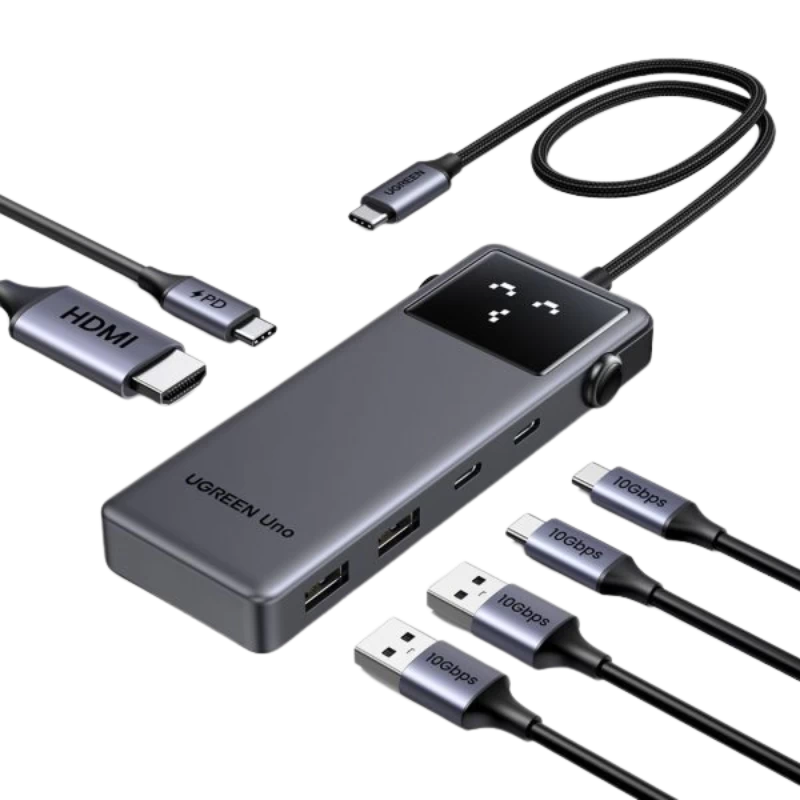
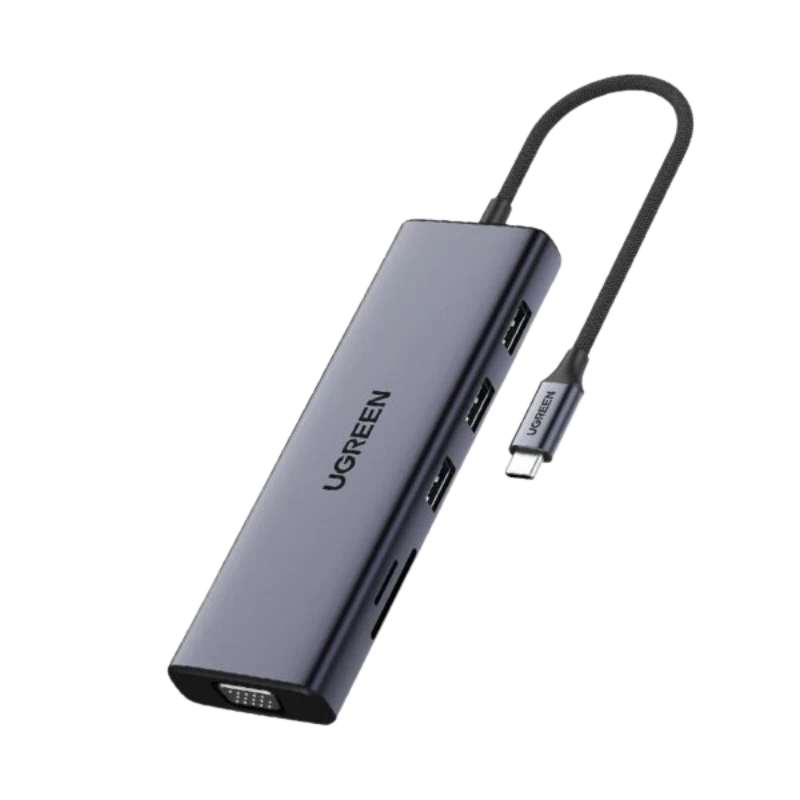
UGreen USB-C Hub — expand laptop ports cho mouse, keyboard, external SSD. Cần thiết cho laptop cũ chỉ 1-2 USB-A.
Sai lầm phổ biến
| ❌ Sai | ✅ Đúng |
|---|---|
| CCleaner Registry "clean" | Skip registry cleaning |
| Defrag SSD | TRIM, not defrag |
| Disable Windows Update | Update for security |
| Antivirus 3rd party + Defender | Choose 1 |
| Pagefile = 0 | Keep optimized size |
FAQ chi tiết
Windows 10 vs 11 — chậm hơn?
Win 11 yêu cầu spec cao hơn (TPM, secure boot, modern CPU). Trên hardware tương đương: same speed sau optimize. Win 11 UI có animation overhead nếu không disable.
Có nên fresh install Windows 11?
Nếu Windows 10 PC compatible Win 11: upgrade OK, không cần fresh. Nếu hardware older: stay Win 10 (supported 2025) hoặc Linux alternative.
Antivirus free vs paid?
Windows Defender free đủ cho 95% users. Paid (Bitdefender, Norton) thêm: VPN, password manager, advanced ransomware protection. Worth nếu doanh nghiệp / sensitive data.
Mua SSD upgrade ở đâu?
- Samsung 970 EVO Plus 500GB ~1.5tr (Vincom CellphoneS, Phong Vũ)
- WD Blue SN570 500GB ~1.3tr
- Crucial MX500 SATA 500GB ~1.2tr (cho laptop cũ SATA only)